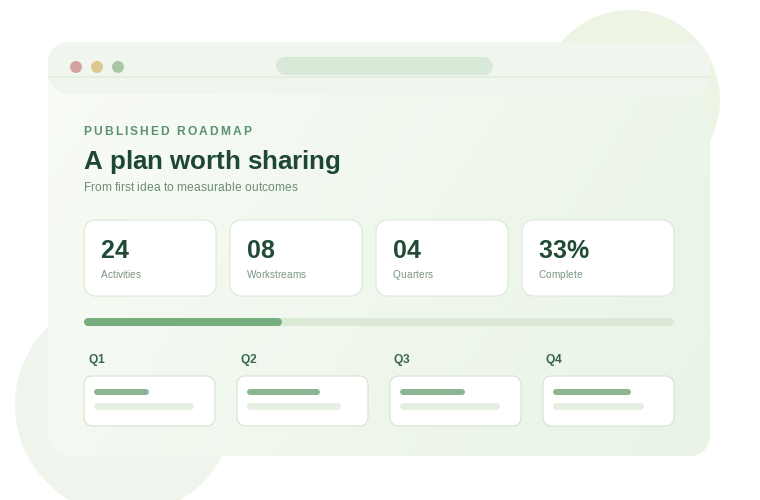
Preview, edit, then export PowerPoint
You can create a complete 16:9 presentation from any roadmap without changing its underlying activities or dependencies.
How to create a deck
- Open your roadmap and select Edit PowerPoint near the top of the editor.
- Review the slide list. Select each slide to inspect the 16:9 preview.
- Edit slide titles, introductions, key figures and individual content cards. Add commentary slides, reorder slides, or uncheck slides to exclude them.
- Optionally enable descriptions, owner names or individual activity deep dives and choose Regenerate slides. Regeneration replaces your edits, so save a draft first.
- Choose Export PowerPoint (.pptx). Text boxes, cards, labels, timeline cells and background shapes remain editable native PowerPoint elements rather than flattened images.
Choose fonts and colours
In the presentation studio, open Fonts & colours. Start with Mightora, Ocean, Graphite or Plum, or pick custom colours for the cover, accent, highlights, background and text. Set separate heading and body fonts using the suggested fonts or type a font family name. The preview updates immediately, and the font and colour choices are carried into editable PowerPoint elements. For the closest match, use fonts installed on the device opening PowerPoint. Theme choices are included in saved deck drafts and preserved when you regenerate a deck.
What is included?
Title card, executive delivery overview, a readable paginated roadmap timeline, dependency overview and individual links, quarter-by-quarter delivery breakdown, each workstream with its activities, delivery risks and decisions, and next steps. Roadmaps with many quarters, workstreams or activities are automatically spread across more slides so the content stays legible.
Does editing slides change the roadmap?
No. The presentation is a separate, temporary copy. To change the real plan, return to the editor. To preserve presentation edits across browser sessions, use Save deck draft to download JSON and Open deck draft to load it again.
What about sensitive information?
Owner names are excluded by default. You control what appears on the slides and can exclude individual slides. The presentation editor works in your browser and does not send your roadmap to a Mightora backend. Downloading a .pptx loads the PowerPoint generation library from jsDelivr, which requires a network request. Avoid sharing exported presentations containing confidential details.
Tip: Use the normal deck for a stakeholder presentation, then enable individual activity deep dives for a delivery-team working session. Save a deck draft before regenerating.